
Marketing email
Build the message. Know exactly who receives it.
Create campaigns, choose subscribed audiences, schedule a send, build welcome sequences, and compare subject lines while keeping recipient-level delivery clear.
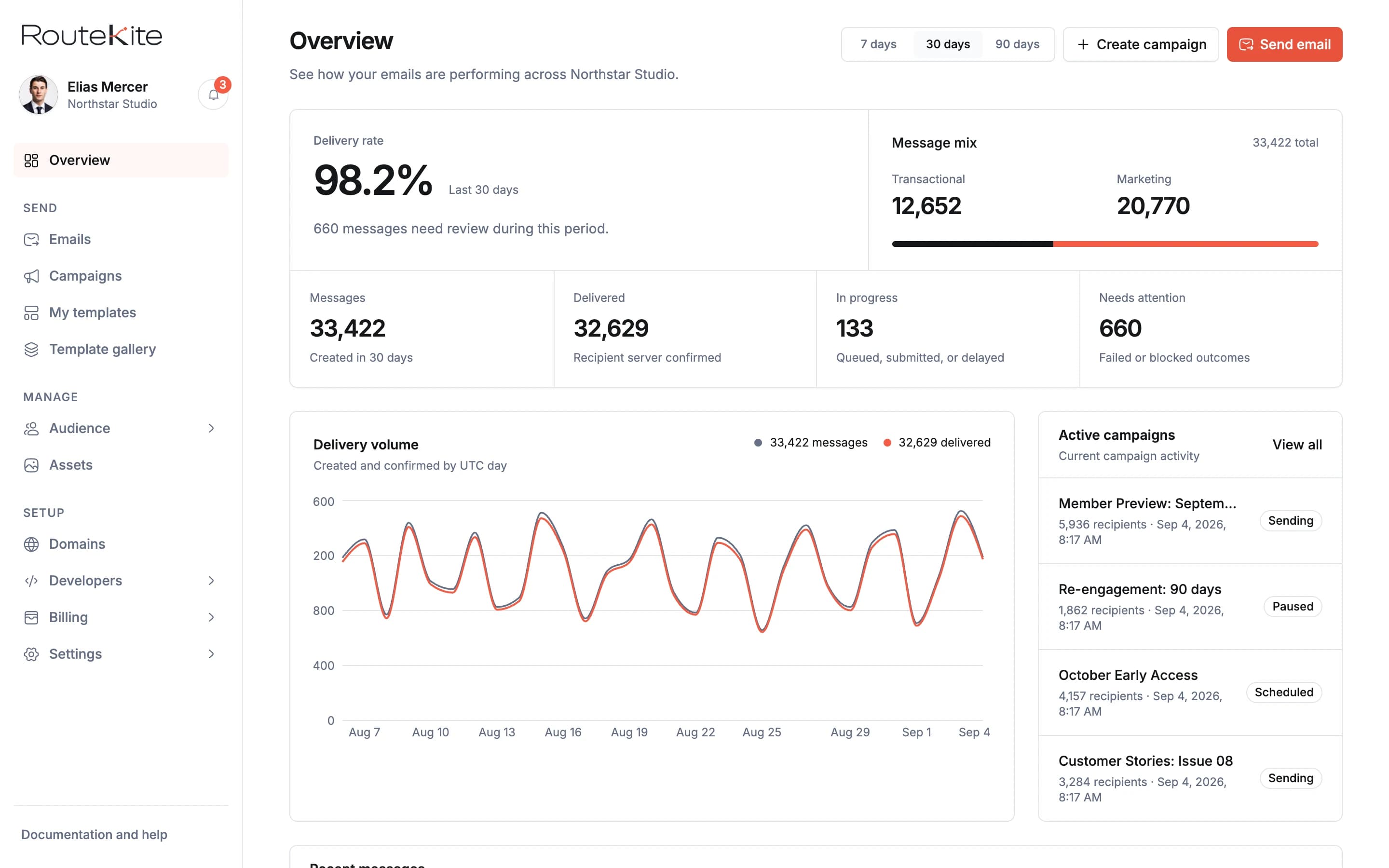
Move from workspace performance to active campaigns and an individual campaign without losing context.
A campaign should answer five questions before it leaves.
Who is sending it? Who should receive it? What will they see? Is every required detail present? What happened after send? RouteKite keeps those answers in one continuous flow.
- 01Set the campaign
Name the campaign, choose a verified Sending Address, and keep the sender visible throughout setup.
- 02Choose the audience
Choose eligible subscribers, a list, or a saved segment. Apply a topic when needed. Suppressed and globally unsubscribed contacts stay out.
- 03Prepare the message
Choose a published template, add the subject and preview text, then provide any required variables.
- 04Review everything
See the sender, audience, message, and eligible recipient count together. Send now or confirm a future scheduled send.
- 05Follow delivery
Track campaign progress and open each recipient message when a delivery needs attention.
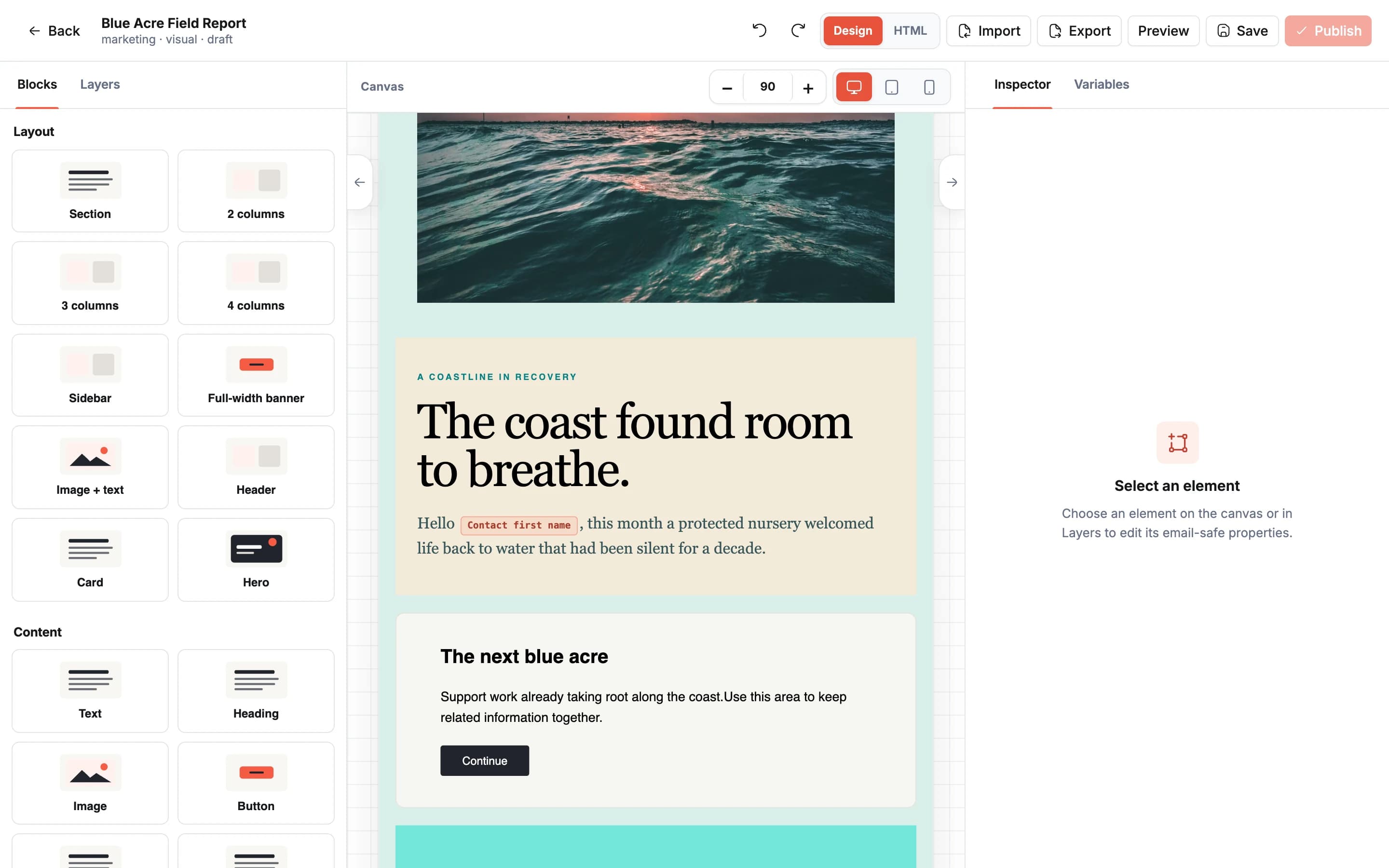
Replace imagery, edit copy directly, and place a new content card exactly where the message needs it.
Message design
Start with a strong design, then make it unmistakably yours.
Pick a template that fits the message instead of forcing every campaign into the same layout. Change the structure, imagery, writing, links, spacing, and colors in the visual editor. Preview desktop, tablet, and mobile before publishing.
Variables stay visible while you work. If a published template expects campaign information, RouteKite asks for it before the campaign can continue.
Browse every templateAudience control
A list is useful only when you understand who is actually sendable.
Contact counts change. People unsubscribe. Addresses are suppressed. RouteKite calculates the audience from the current contact state before send, rather than treating an old list total as a promise.
- Import contacts from a CSV without losing row-level results.
- Organize subscribers into reusable lists.
- Personalize with typed custom contact fields.
- Save segments with up to ten Match all or Match any conditions.
- Respect topic preferences separately from global unsubscribe.
- Keep subscription and suppression states visible.
- Know the eligible recipient count before sending.
- Contacts in list
- 12,842
- Unsubscribed
- 214
- Suppressed
- 148
- Eligible recipients
- 12,480
Example counts. Only eligible recipients enter the campaign delivery queue.
Schedule the campaign with the audience you reviewed.
Confirm a future time and timezone after reviewing the sender, content, personalization, and recipient count. RouteKite freezes that selection, then rechecks current permission, sender readiness, and available balance before activation.
Later list changes do not silently add recipients to a confirmed schedule. Contacts who become ineligible are excluded. To change content or the selected audience, cancel and prepare a new draft. A missed activation window needs an explicit reschedule or Send now action.
Read audience and scheduling rulesTurn a new list signup into a welcome sequence.
Automations send an ordered sequence when a contact joins a selected list. Set a wait between emails and use a published template for each step, without rebuilding every welcome campaign.
- 01Choose the entry list
Use the When contact joins list trigger. Publishing applies to future joins and does not automatically enroll existing members.
- 02Build one to ten email steps
Choose an ordered template sequence and waits in minutes, hours, or days. This is a linear drip sequence, not a branching journey builder.
- 03Review and publish
Published sequence and template versions stay fixed for existing enrollments. Later edits apply to future enrollments. Automation analytics stays Off.
Compare two subject lines before sending the rest.
Campaign A/B testing compares two subject and preview-text variants using the same published template. Review the test audience, evaluation window, and winner rule before launch.
A/B tests require campaign analytics On and its sender confirmation. Automatic selection uses eligible, likely-human engagement evidence and a minimum sample. An inconclusive result uses a deterministic fallback; stale or unavailable evidence can pause the remaining audience instead of inventing a winner. A/B campaigns cannot be scheduled.
Observed opens and clicks are estimates, not proof that a person read an email. Normal campaigns default to analytics Off, and creating an engagement segment does not turn tracking on.
Understand delivery and engagement reportingAfter send
The campaign total is only the beginning.
See whether a campaign is preparing, sending, completed, or blocked. Then move from the campaign to an individual email when you need the actual delivery history or a clear reason for failure.
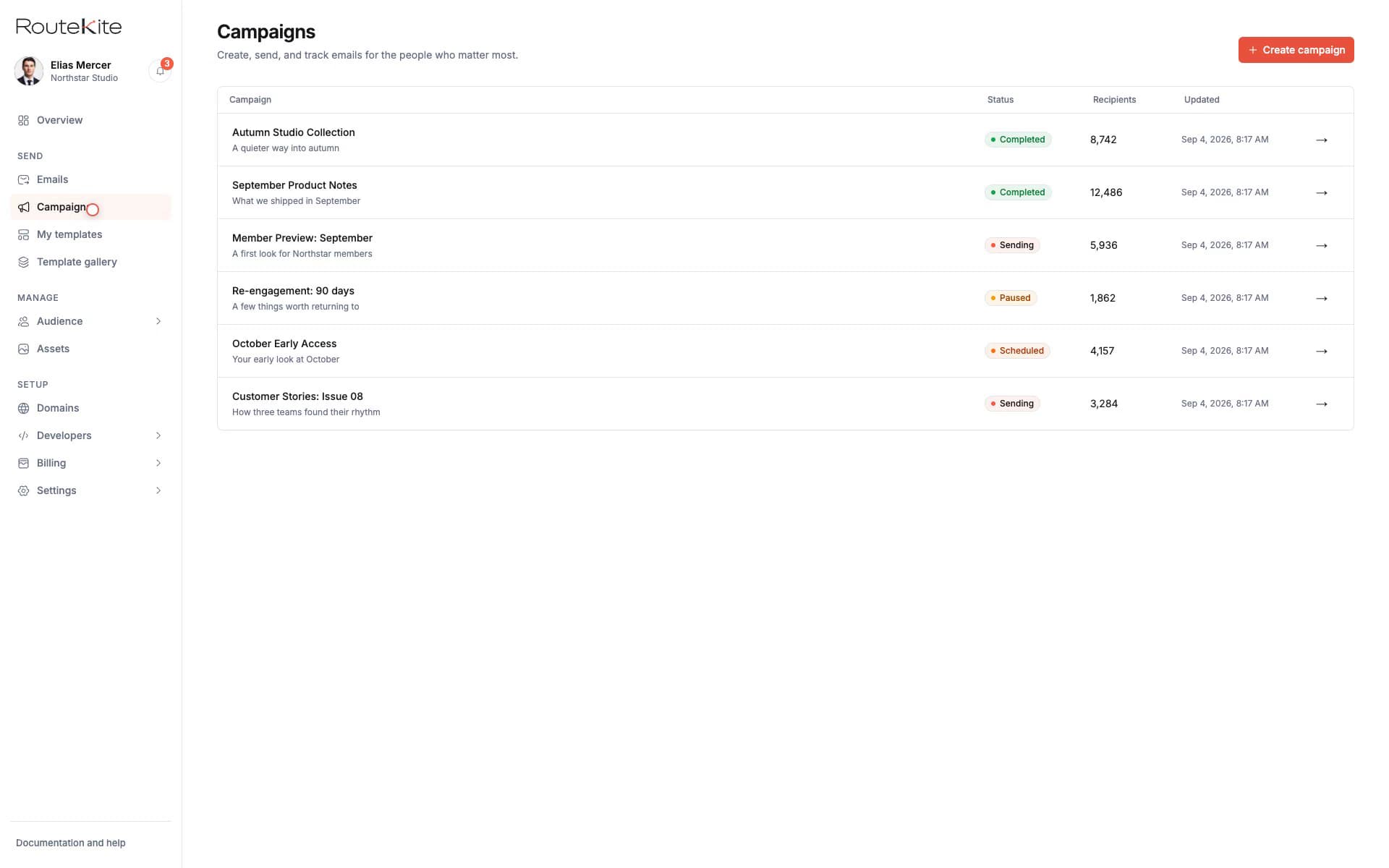
See each campaign's current state, audience size, and next action in one operational view.
Start with the message
Create a campaign people can understand before they open it.
Choose a template, prepare the audience, and review the complete send from one workspace.